Do you want to create a transcript from a video without spending a lot of time doing it by hand? Adding text to videos can make them more popular, but nobody wants to spend hours typing it all out.
Fortunately, there are better and faster ways to get this done. You can hire experts to do it, or you can use automatic tools for quick results.
This article will guide you through the process of turning videos into text. We’ll explain why this is important and how it can help your content get noticed on the internet.
Most importantly, we’ll show you how to transcribe a video into text in just a few minutes.
5 Different ways for video transcription
Let’s compare 5 different ways for video transcription:
-
Notta: Notta is an AI-powered app for turning speech in videos into text. It’s easy to use, works with 58 languages, and has built-in editing tools to improve transcripts. However, the free version has some limits, and it might make mistakes if the sound or accents in the video are tricky.
-
Google Docs: Google Docs is a free way to transcribe audio and video to text. You can collaborate with others in real-time right from your browser. It plays nicely with other Google tools. Sometimes it doesn’t get the text right, especially with low-quality audio. You also can’t use it for live videos.
-
Microsoft 365 Online: This is like Google Docs but for Microsoft apps. It’s good at getting text from clear videos and has teamwork features. However, it might make mistakes with hard videos or accents, and you need to pay for it.
-
Simon Says: Simon Says is a Mac app for turning speech into text. It can handle different types of audio, connect to video editing tools, and transcribe in 100 languages. But it’s a bit expensive, and the free version has limits. You need to pay extra for live video text.
-
iPhone’s Notes App: The Notes app on an iPhone can change your voice into text quickly. It’s built into the iPhone and doesn’t cost anything. However, it’s not as good as the special transcription programs, and it might not do well with long or tricky videos. You can only use it on an iPhone.
The best choice depends on what you need. Programs like Notta are very good but may cost a small amount of money. Google Docs and Microsoft 365 Online are cheaper, but might not be perfect. The iPhone’s Notes app is handy for simple tasks but not for pro jobs.
How to transcribe video to text with 5 tools
Automatically convert video to text with Notta
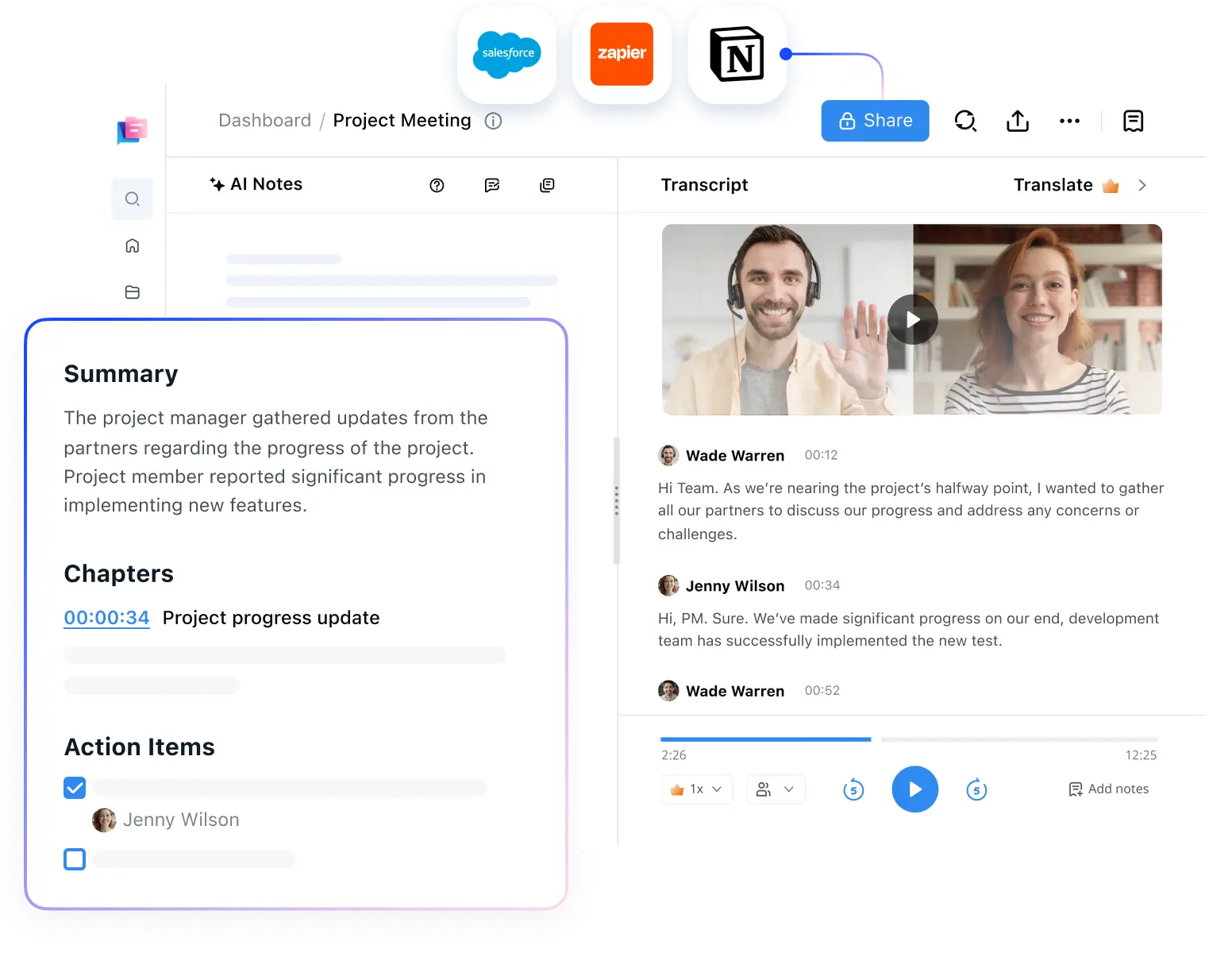
Notta is transcription software that you can use to turn spoken words from phone calls, podcasts, videos, radio shows, and live streams into written text in real-time.
If you’re the type of person to record a 20-minute audio message to brainstorm business ideas, Notta gives you a neat summary of important insights. If you need quick access to key points from your last work meeting, Notta does that too.
Instead of wasting hours trying to manually type a 10-page document, Notta automatically turns audio and video interviews into editable text in seconds.
Notta doesn’t just transcribe, it also translates into 42 languages.
It’s available as a web or mobile app, it works on multiple browsers, and there’s even a Chrome extension. You can also use Notta on different devices like tablets, computers, and smartphones.
If you’re working with sensitive information, rest assured that your data is safe with 256-bit AES encryption.
Features:
-
It works with lots of different devices and has a Chrome extension.
-
Transcribe audio and video immediately through direct upload or shared link.
-
58 languages are supported for transcription.
-
Uses AI for accurate transcription.
Pros:
-
Notta’s transcripts have an accuracy rate of 98.86%.
-
Has an interface that’s easy to use and simple to understand.
-
It now features playback control that allows you to rewind, fast-forward, and adjust the speed of the recording.
Cons:
-
The free plan doesn’t allow you to export transcripts directly.

Steps for how to auto-transcribe a video with Notta
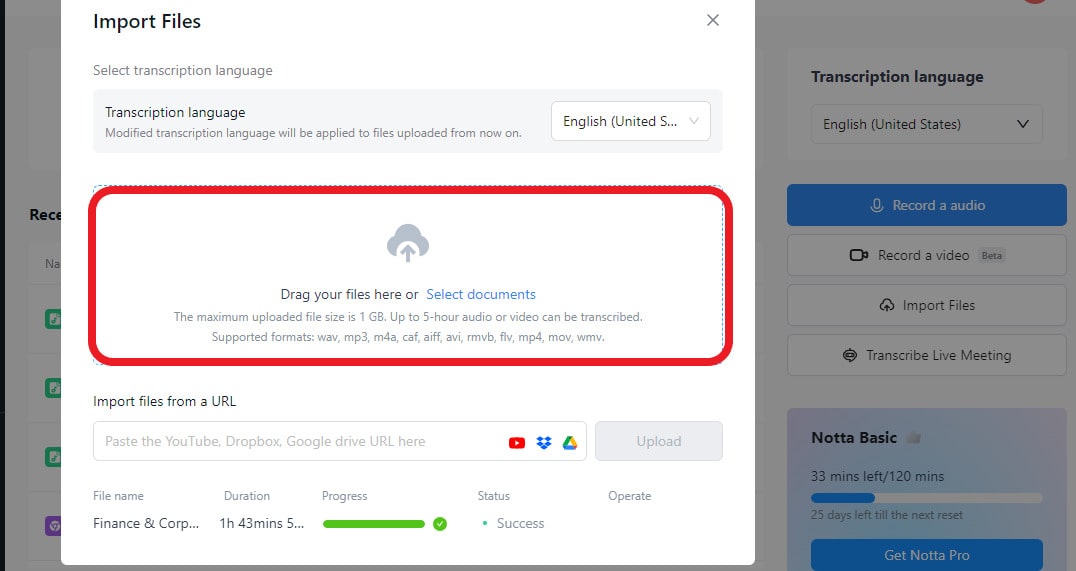
Step 1: Click the “Upload & transcribe” button. You can either drag your files or click “select documents.” You can upload many video files at once. To make sure the transcript is accurate, set the correct language. You can also change video to text by pasting a YouTube video’s URL and clicking “Upload.“
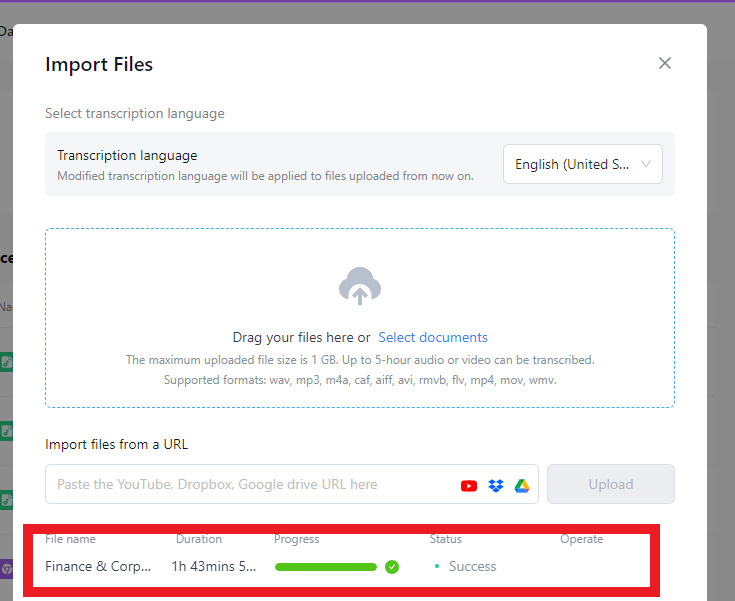
Step 2: Wait for the video files to finish uploading. It may take a few minutes, depending on the size of the files. You can upload videos up to 10GB in size or 5 hours in length.
Once the uploading is done, the video will start transcribing automatically. After that, you can click any point in the text twice to play back the audio with timestamps. You can also add notes and pictures to your transcriptions for extra clarity.
Step 3: Click “Export,” then pick a text format like TXT, DOCX, SRT, or PDF. SRT is a common format for video subtitles. Transcribing video to text helps you easily add subtitles to videos. You can also share recordings and transcripts with colleagues or clients through a link, and they don’t need a Notta account for this. To make a special link to share with others, click the “Share” button.
Transcribe video to text free by Google Docs
Another good way to turn video into written words for free is by using Google Docs in the Google Chrome web browser. In Google Docs, there’s a cool feature called “voice typing.” When you click on it, you can talk, and it will turn your words into written text right in your document. It’s an easy, useful, and quick way to transcribe audio.
Features:
-
Users can transcribe audio content in real-time and reduce the time needed to transcribe video to text.
-
Provides you with a user-friendly and straightforward interface, making it accessible to all users.
-
Google Docs lets you turn speech into text for free with any Google Docs account, which is a low-cost way to transcribe audio.
Pros:
-
Allows you to edit the words after they’re written down.
-
You can do this for as many videos as you want.
Cons:
-
Background noise can cause accuracy problems.
-
It has a higher error rate than others.
Steps to transcribe video to text free by Google Docs
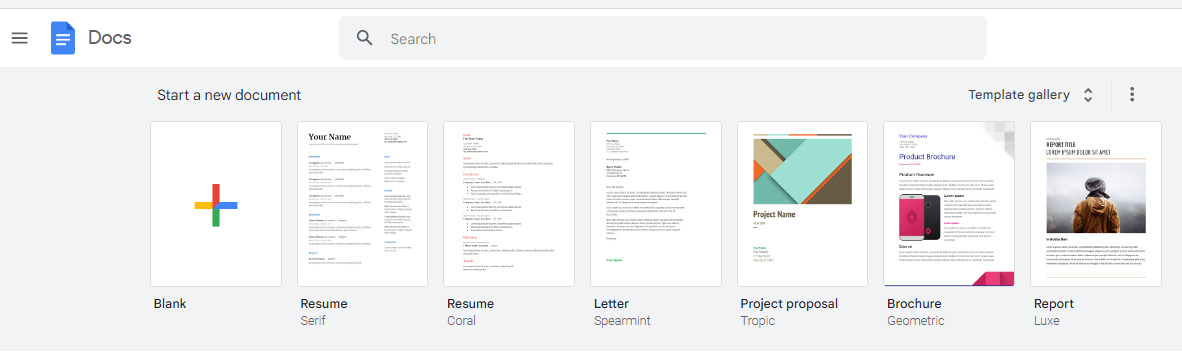
Step 1: Go to Google Docs and choose ‘Blank document’ on the main page. This will start a new empty document where you can start typing.
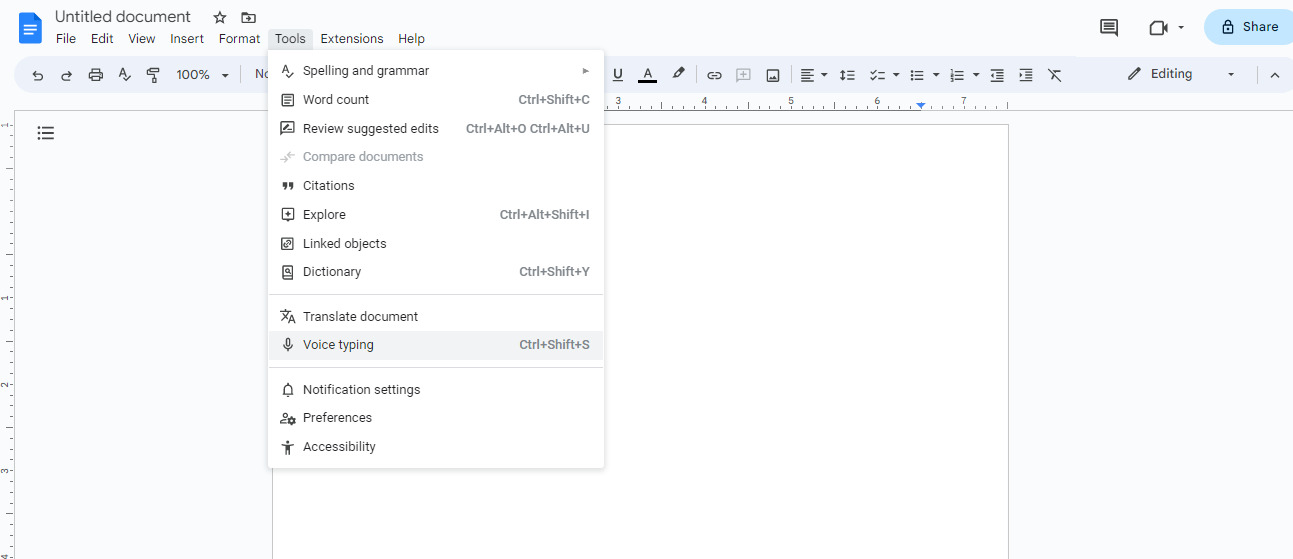
Step 2: Go to “Tools” in the menu and choose “Voice typing” to turn speech into text. You’ll see a microphone icon on your screen. Or, you can quickly get there by pressing “command + shift + s” on your keyboard.
Step 3: Connect your microphone to your device and check that it’s working properly. Make sure you’re in a quiet environment with low background noise.
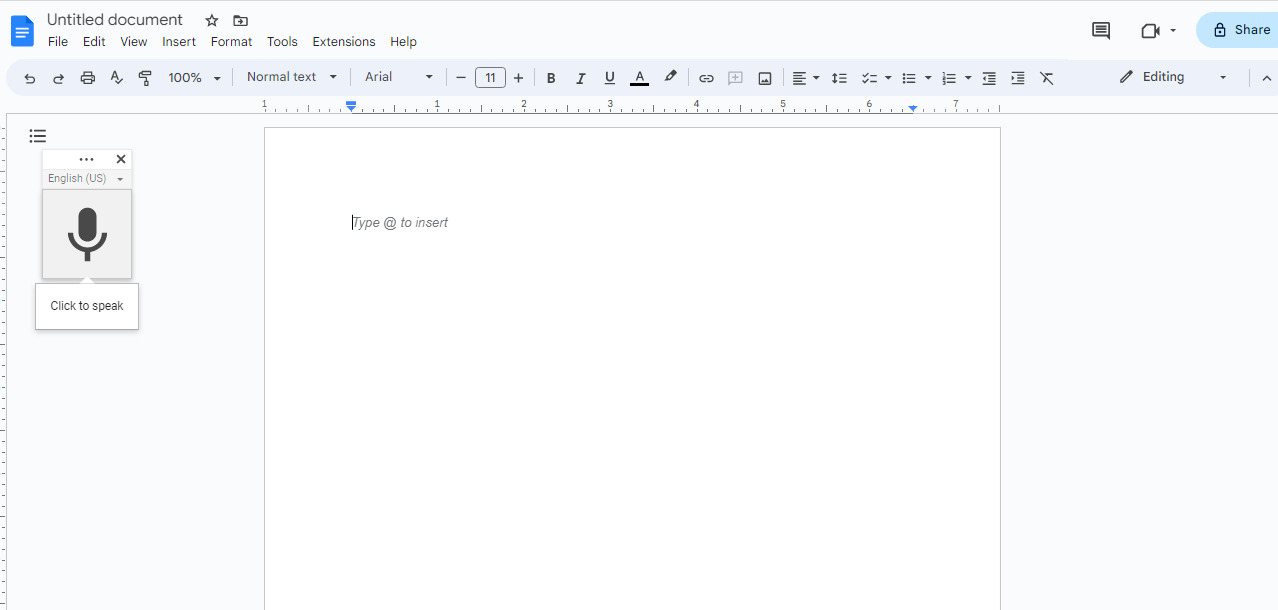
Step 4: Choose the right language for your transcription work. Google Docs voice typing works with more than 100 languages.
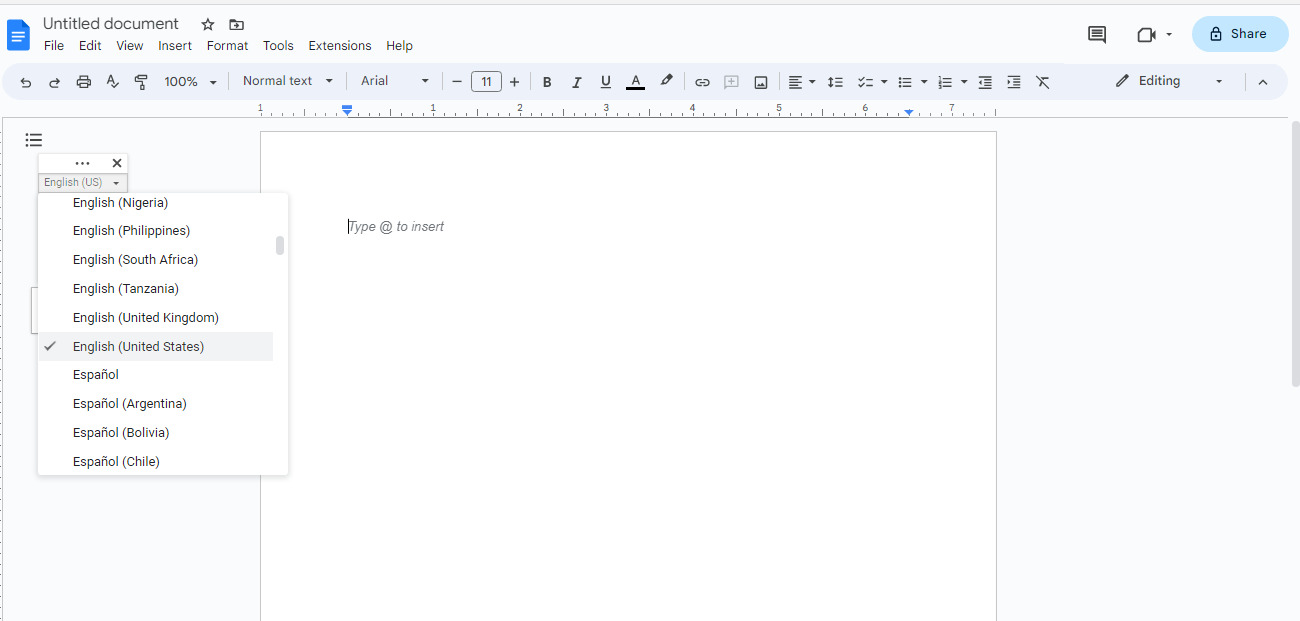
Step 5: Picked your language, you can start transcribing. Just click on the microphone symbol to turn on voice typing, then speak into your microphone. Your words will show up on the screen as you talk, right away.
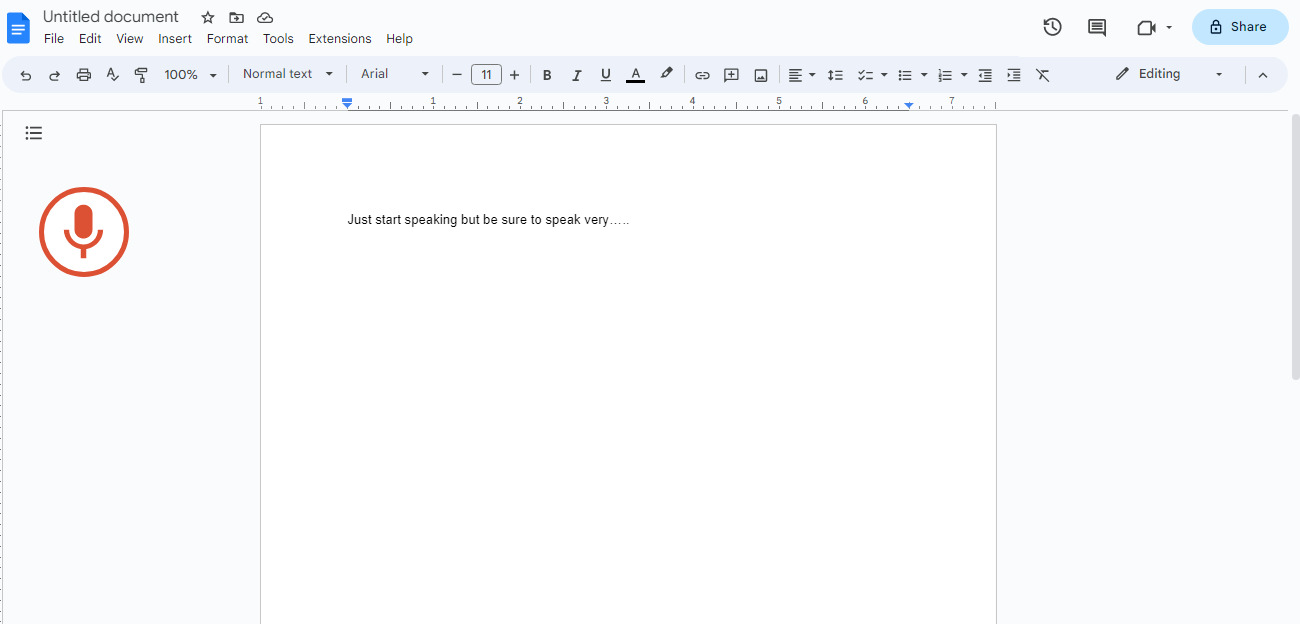
Step 6: Use special voice commands that make it easier to format your transcription. For instance, you can say ‘period’ to add a full stop or ‘comma’ to put in a comma. You can also use voice commands to remove or change words. But remember, these voice commands work only if you’re using English for your account and document language.
Step 7: Check and fix any mistakes to make sure it’s correct and easy to understand. You can use Google Docs tools to make it look nice and correct any errors.
Transcribe video to text by Microsoft 365
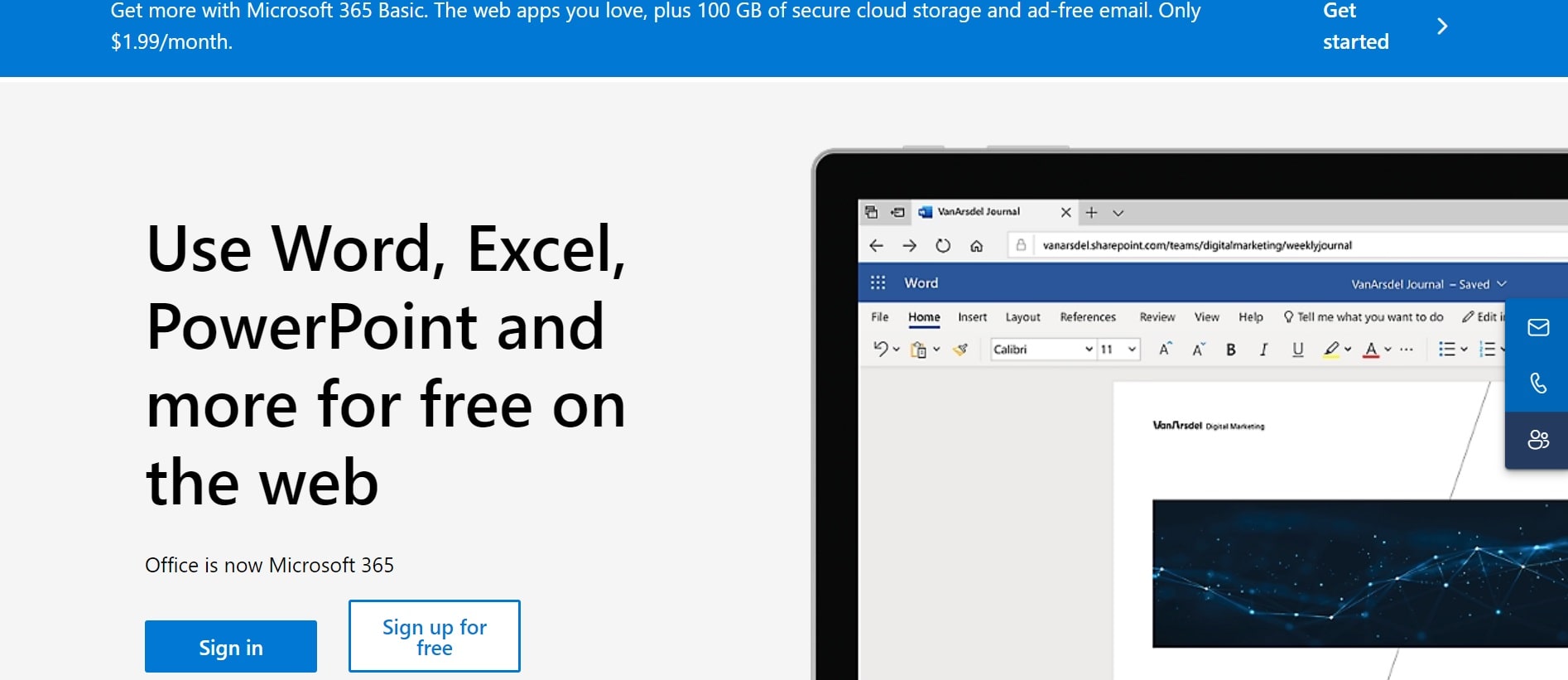
Microsoft 365 is a cloud-based subscription service that provides a lot of creative tools and applications for work, school, and personal use. It includes programs like Word, Excel, PowerPoint, and others. You can use them in a web browser and work with others online.
Features:
-
You can use Word, Excel, PowerPoint, and Outlook on the internet from anywhere.
-
Working together instantly and sharing files using OneDrive and Microsoft Teams.
-
You can use your files and apps on different gadgets like computers, iPhones, and Android phones.
Pros:
-
You can work from any place with internet access, making it easier to work from a distance.
-
Easy connection with other Microsoft services and apps.
Cons:
-
You need to pay every month or year for it, and that might be expensive for some people.
-
Requires a good internet connection to work well.
Steps to transcribe video to text by Microsoft 365
Step 1: Go to Word Online and sign in.
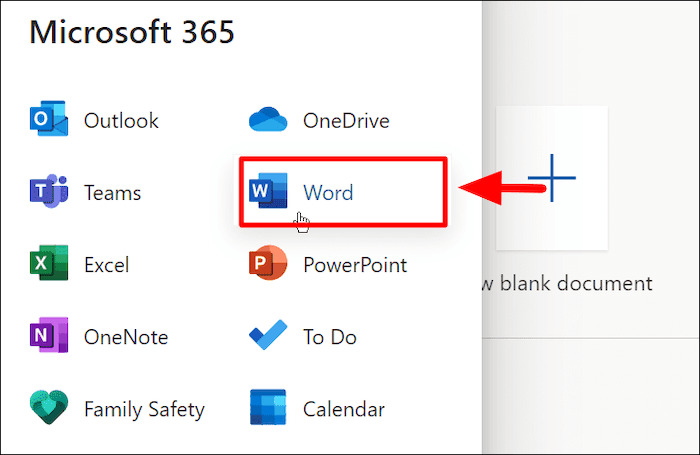
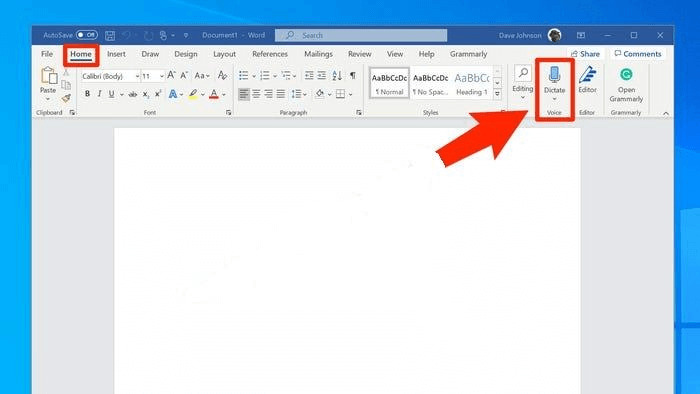
Step 2: Go to the ‘Home’ tab, and choose the ‘Dictate’ option from the list by clicking the little arrow next to it.
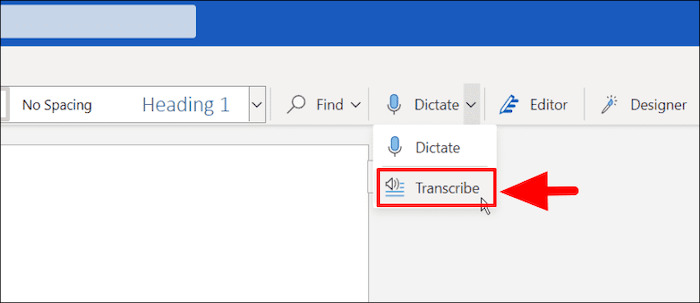
Step 3: Choose ‘Transcribe’ from the list to continue.
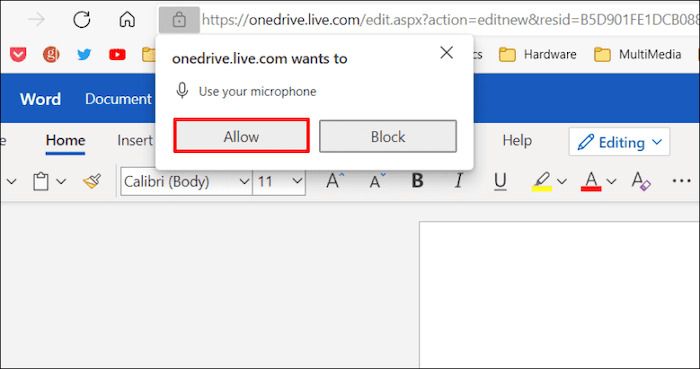
Step 4: If you haven’t done transcription before, you’ll have to allow Microsoft to use your microphone.
Step 5: Upload a file, or click ‘Start Recording’ to continue.
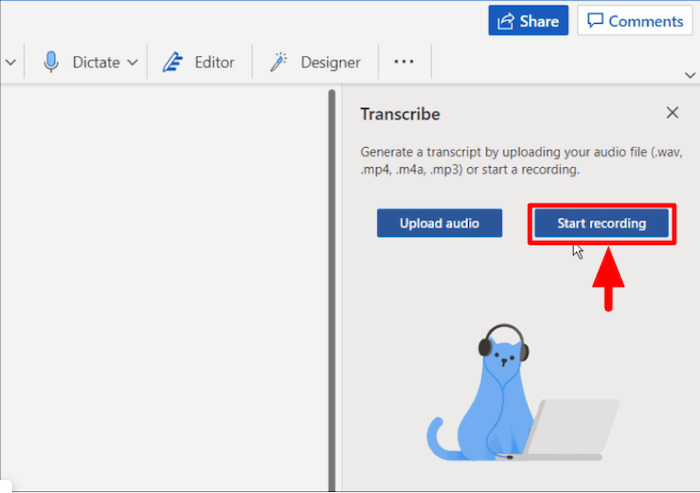
Step 6: When you click on it, the timer will begin, and you can start talking. But your words won’t be turned into text while you’re speaking.
Step 7: Stop the recording and use the ‘Dictate’ button. Keep the transcribe pane open while you’re recording.

您好,这是一条评论。若需要审核、编辑或删除评论,请访问仪表盘的评论界面。评论者头像来自 Gravatar。